
Hugo建站-基础教程

警告
本文最后更新于 2021-09-22,文中内容可能已过时。

Hugo提供全平台(Windows,Linux,macOS),安装最新版本:(far fa-file-archive fa-fw): Hugo (>0.62.0)

按照以下步骤初始化新网站

使用new命令创建新网站:

1
hugo new site my_site

克隆DoIt主题仓库到themes目录:

1
git clone https://github.com/HEIGE-PCloud/DoIt

或者,初始化项目为git仓库,并且把主题仓库作为子模块导入:

1
2
git init
git submodule add https://github.com/HEIGE-PCloud/DoIt.git themes/DoIt

通过以下命令创建一篇新文章:

1
hugo new posts/title.md

在配置文件中添加newContentEditor = 'vim',创建新文章后能自动在vim中打开该文档进行编辑

使用以下命令启动网站:

1
hugo serve[r]

在浏览器中打开地址http://localhost:1313/可以实时预览。
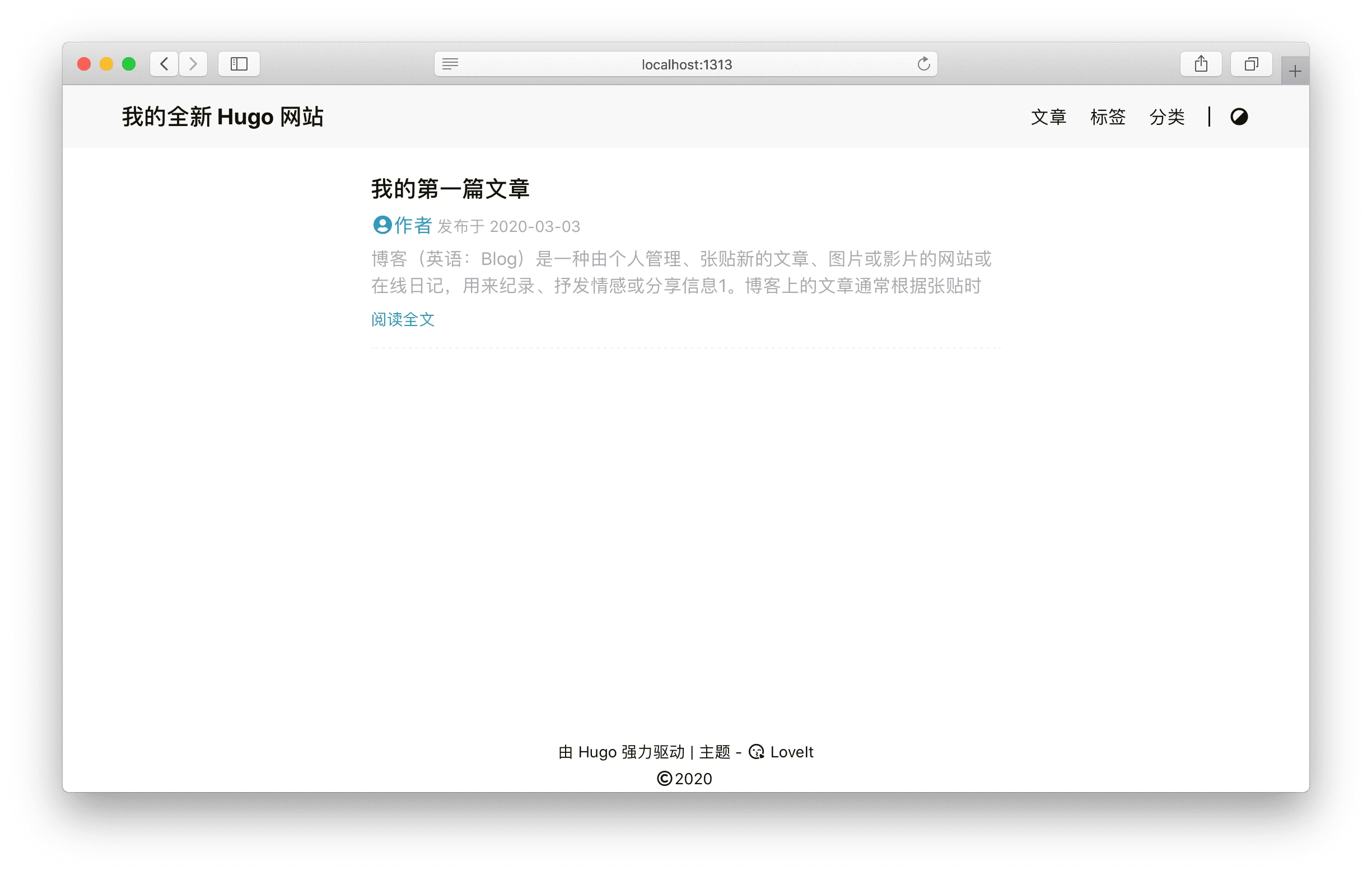
基本配置下的预览
基本配置下的预览

技巧
当你运行 hugo serve 时, 当文件内容更改时, 页面会随着更改自动刷新.
注意

由于本主题使用了 Hugo 中的 .Scratch 来实现一些特性, 非常建议你为 hugo server 命令添加 --disableFastRender 参数来实时预览你正在编辑的文章页面.

1
hugo serve --disableFastRender

一切就绪时,运行以下命令:

1
hugo

会生成一个public目录,其中包含网站所需的所有静态文件,可将其部署在任何Web服务器上。

除了使用单个配置文件外,还可以使用configDir目录维护组织和环境特定的变量。

 1
 2
 3
 4
 5
 6
 7
 8
 9
10
11
12
13
14
15
├── config
│   ├── _default
│   │   ├── config.toml
│   │   ├── languages.toml
│   │   ├── menu.en.toml
│   │   ├── menu.zh-cn.toml
│   │   ├── params.toml
│   │   ├── params.en.toml
│   │   └── params.zh-cn.toml
│   ├── production
│   │   ├── config.toml
│   │   └── params.toml
│   └── staging
│       ├── config.toml
│       └── params.toml
  • 每个文件代表一个配置根对象,如ParamsMenuLanguages
  • 每个目录包含一组文件,这些文件包含特定的环境设置。
  • 可以对文件进行本地化以使其成为特定语言的配置文件。

在运行hugo -environment staging命令时,Hugo将使用config/_defaultstaging合并后的配置。

以下是方便管理和生成文章的目录结构建议:

  • 保持博客文章存放在 content/posts 目录, 例如: content/posts/我的第一篇文章.md
  • 保持简单的静态页面存放在 content 目录, 例如: content/about.md
  • 本地资源组织
本地资源引用

有三种方法来引用图片音乐等本地资源:

  1. 使用页面包中的页面资源. 你可以使用适用于 Resources.GetMatch 的值或者直接使用相对于当前页面目录的文件路径来引用页面资源.
  2. 将本地资源放在 assets 目录中, 默认路径是 /assets. 引用资源的文件路径是相对于 assets 目录的.
  3. 将本地资源放在 static 目录中, 默认路径是 /static. 引用资源的文件路径是相对于 static 目录的.

引用的优先级符合以上的顺序.

在这个主题中的很多地方可以使用上面的本地资源引用, 例如 链接, 图片, image shortcode, music shortcode 和前置参数中的部分参数.

页面资源或者 assets 目录中的图片处理会在未来的版本中得到支持. 非常酷的功能! :(far fa-grin-squint fa-fw):

Hugo目前使用goldmark作为默认的Markdown引擎。配合mathjax可以输出漂亮的数学公式。 由于Markdown和LaTeX对下划线_及转义符号\的处理差异,在调用mathjax渲染 公式时会出错。有几种方法可以解决。

  • 手动添加转义符号\,使得goldmark解析过后,符合TeX语法。
  • 添加shortcode,避免公式部分被goldmark解析,直接调用mathjax处理。
  • 使用goldmark-matjax插件,避免手动修改文件内容,缺点是需要自行编译。

这里采用最后一种方法,克隆Hugo仓库 到本地并添加插件

 1
 2
 3
 4
 5
 6
 7
 8
 9
10
11
12
13
# Go 1.13及以上(推荐)
# 考虑网速,国内走代理
go env -w GO111MODULE=on
go env -w GOPROXY=https://goproxy.cn,direct
# Sass/SCSS 支持
go env -w CGO_ENABLED=1

# 或者在终端执行
export GO111MODULE=on
export GOPROXY=https://goproxy.cn
export CGO_ENABLED=1
# 添加插件
go get github.com/litao91/goldmark-mathjax

修改文件markup/goldmark/convert.go

 1
 2
 3
 4
 5
 6
 7
 8
 9
10
11
12
13
14
15
16
17
18
import (
    "bytes"
    "fmt"
    // ...
    // Add mathjax-support
    mathjax "github.com/litao91/goldmark-mathjax"
)
// ...
    
    // register goldmark-mathjax
    extensions = append(extensions, mathjax.MathJax)

    md := goldmark.New(
        goldmark.WithExtensions(
            extensions...,
        ),
        // ...
    )

最后编译

1
2
# 编译|安装
go build|install --tags extended

接下来有两种方案调用JS脚本进行公式渲染。

方案一(当前采用)

在配置文件params.toml中添加mathjax全局控制开关

1
2
3
4
[page]
# ...
  [page.mathjax]
    enable =false   # 默认关闭

若要开启数学公式支持,则在前置参数中添加mathjax: true。 最后修改模板文件assets.html导入JS脚本

1
2
3
4
5
{{- $mathjax := or (eq $params.mathjax true) .Site.Params.page.mathjax.enable | dict "enable" -}}
{{- if $mathjax.enable -}}
    {{- $source := $cdn.mathjaxJS | default "/js/load-mathjax.js" -}}
    {{- dict "Source" $source "Fingerprint" $fingerprint "Defer" true | dict "Scratch" .Scratch "Data" | partial "scratch/pjaxScript.html" -}}
{{- end -}}

采用的load-mathjax.js内容为

 1
 2
 3
 4
 5
 6
 7
 8
 9
10
11
12
13
14
15
16
17
18
19
20
21
22
23
24
25
26
27
28
29
30
31
window.MathJax = {
  loader: {load: ['[tex]/physics']},
  tex: {
    packages: {'[+]': ['physics']},
    inlineMath: [['$', '$'], ['\\(','\\)']],
    displayMath: [['$$','$$'], ['\\[','\\]']],
    processEscapes: true,
    processEnvironments: true,
    processRefs: true,
    tags: 'ams',
    macros: {
      bm: ["\\boldsymbol{#1}", 1],
      bigo: "\\mathcal{O}",
      pprime: "\\prime\\prime",
      lrp: ["\\left(#1\\right)", 1],
      lrb: ["\\left[#1\\right]", 1],
      Abs: ["\\lvert #1 \\rvert", 1]
    },
    physics: {
      italicdiff: false,
      arrowdel: false
    }
  }
};

(function () {
  var script = document.createElement('script');
  script.src = 'https://cdn.jsdelivr.net/npm/mathjax@3/es5/tex-chtml-full.js';
  script.async = true;
  document.head.appendChild(script);
})();
方案二(推荐)

优点:在于无需修改模板文件assets.htmlload-mathjax.js可根据内容是否包含 数学公式自动加载JS脚本进行渲染,也无需在前置参数中添加mathjax: true进行声明。

缺点:确实自动加载了JS脚本,但仍需额外刷新一次网页才会渲染公式 (若解决此Bug,则会切换到此方案)。

在配置文件中找到page.library.js,添加如下内容

1
2
3
4
5
6
[page]
# ...
  [page.library]
  # ...
    [page.library.js]
      mathjaxJS = "/js/load-mathjax.js"

这里用的load-mathjax.js与方案一差别在于套了一层if进行数学环境的判断。

 1
 2
 3
 4
 5
 6
 7
 8
 9
10
11
12
13
14
15
16
17
18
19
20
21
22
23
24
25
26
27
28
29
(function () {
  if (document.body.querySelector('math') ||
      document.body.textContent.match(/(?:\$|\\\(|\\\[|\\begin\{.*?})/)) {
    if (!window.MathJax) {
      window.MathJax = {
        tex: {
          inlineMath: {'[+]': [['$', '$']]},
          displayMath: [['$$','$$'], ['\\[','\\]']],
          processEscapes: true,
          processEnvironments: true,
          processRefs: true,
          tags: 'ams',
          macros: {
            bm: ["\\boldsymbol{#1}", 1],
            bigo: "\\mathcal{O}",
            pprime: "\\prime\\prime",
            lrp: ["\\left(#1\\right)", 1],
            lrb: ["\\left[#1\\right]", 1],
            Abs: ["\\lvert #1 \\rvert", 1]
          }
        }
      };
    }
    var script = document.createElement('script');
    script.src = 'https://cdn.jsdelivr.net/npm/mathjax@3/es5/tex-chtml-full.js';
    script.async = true;
    document.head.appendChild(script);
  }
})();

默认的行内公式分割符为$/$\\(/\\)

1
$ c = \pm\sqrt{a^2 + b^2} $ 和 \\( f(x)=\int_{-\infty}^{\infty} \hat{f}(\xi) e^{2 \pi i \xi x} d \xi \\)

效果如下:

$ c = \pm\sqrt{a^2 + b^2} $ 和 \( f(x)=\int_{-\infty}^{\infty} \hat{f}(\xi) e^{2 \pi i \xi x} d \xi \)

默认的公式块分割符为$$/$$\\[/\\]

1
2
3
4
5
6
7
$$ 
c = \pm\sqrt{a^2 + b^2} 
$$

\\[ 
f(x)=\int_{-\infty}^{\infty} \hat{f}(\xi) e^{2 \pi i \xi x} d \xi 
\\]

效果如下:

$$ c = \pm\sqrt{a^2 + b^2} $$

\[ f(x)=\int_{-\infty}^{\infty} \hat{f}(\xi) e^{2 \pi i \xi x} d \xi \]

DoIt主题自带打赏功能,为使用微信和支付宝二维码打赏,需对主题进行一些改动。修改主要涉及三个文件:sponsor.html_custom.scssparams.zh-cn.toml

考虑到英文页面的兼容性,需额外修改国际化文件i18n/zh-CN.toml

/config/_default/params.zh-cn.toml中找到sponsor,并作如下改动

 1
 2
 3
 4
 5
 6
 7
 8
 9
10
[sponsor]
  enable = true
  bio = ""
  link = ""
  [sponsor.wechat]
    enable = true
    link = "/images/wechat-sponsor.webp"
  [sponsor.alipay]
    enable = true
    link = "/images/alipay-sponsor.webp"

英文页面修改对应的params.en.toml

/theme/DoIt/layouts/partials/single/sponsor.html拷贝到站点对应目录下,并作相应修改

 1
 2
 3
 4
 5
 6
 7
 8
 9
10
11
12
13
14
15
16
17
18
19
20
21
22
23
24
25
26
27
28
29
30
31
<!-- 打赏选项设置 -->
{{- $wechatenable := .Params.sponsor.wechat.enable | default .Site.Params.sponsor.wechat.enable -}}
{{- $wechatlink := .Params.sponsor.wechat.link | default .Site.Params.sponsor.wechat.link -}}
{{- $alipayenable := .Params.sponsor.alipay.enable | default .Site.Params.sponsor.alipay.enable -}}
{{- $alipaylink := .Params.sponsor.alipay.link | default .Site.Params.sponsor.alipay.link -}}

{{- if $enable -}}
<!-- 省略不相关部分 -->
        {{- else -}}
            <!-- 注释/删除DoIt主题相关代码 -->
            <div class="sponsor-button">
              <i class="far fa-heart fa-fw icon" style="color: #ec6cb9;"></i>
              <span>{{- T "sponsor" -}}</span>
              <div class="qr-code">
              {{- if $wechatenable -}}
                  <div class="qr-code-image">
                      {{- dict "Src" $wechatlink | partial "plugin/image.html" -}}
                      <span>{{- T "wechatreward" -}}</span>
                  </div>
              {{- end -}}
              {{- if $alipayenable -}}
                  <label class="qr-code-image" for="reward">
                      {{- dict "Src" $alipaylink | partial "plugin/image.html" -}}
                      <span>{{- T "alipayreward" -}}</span>
                  </label>
              {{- end -}}
              </div>
            </div>
        {{- end -}}
<!-- 省略不相关部分 -->
{{- end -}}

CSS样式参考自雨临Lewis, 采用悬浮样式,需修改/assets/css/_custom.scss

 1
 2
 3
 4
 5
 6
 7
 8
 9
10
11
12
13
14
15
16
17
18
19
20
21
22
23
24
25
26
27
28
29
30
31
32
33
34
35
36
37
38
39
40
41
// 打赏样式
article .sponsor .post-reward {
    margin: 30px auto;
    display: block;

    .sponsor-button {
        margin: 0;
        border-radius: 5px;

        .qr-code {
            display: none;
            position: absolute;
            bottom: 125%;
            left: -100%;
            background-color: rgba(255, 255, 255, 1);
            backdrop-filter: blur(10px);
            width: 300%;

            .qr-code-image {
                display: inline-block;
                position: relative;
                width: 100%;
                margin: 5% 5% 3%;
                img {
                    display: inline-block;
                    width: 100%;
                }
                span {
                    display: inline-block;
                    width: 100%;
                    margin: 0;
                }
            }
        }

        &:hover .qr-code {
            display: flex;
        }

    }
}

/theme/DoIt/i18n/zh-CN.toml拷贝至/i18n/zh-CN.toml,打开并添加如下内容

1
2
3
4
5
6
7
8
9
[sponsor]
other = "赞赏"

# added for WeChat and AliPay
[wechatreward]
other = "微信打赏"

[alipayreward]
other = "支付宝打赏"

DoIt主题支持自定义JavaScript脚本,在配置文件中设置脚本路径

1
2
3
4
5
6
7
8
9
[page]
# ...
  # 第三方库配置
  [page.library]
    [page.library.css]
      # ...
    [page.library.js]
      someJavaScript = "/js/custom.js"
      # ...

自定义脚本custom.js存放在站点目录/assets/js下,在其中添加如下内容

 1
 2
 3
 4
 5
 6
 7
 8
 9
10
11
12
13
14
15
16
17
18
19
20
21
22
23
24
25
26
27
28
29
30
31
32
33
34
35
36
37
38
39
40
41
42
43
44
45
46
47
48
49
50
51
52
53
54
/* 返回随机颜色 */
function randomColor() {
	return "rgb("+~~(255*Math.random())+","+~~(255*Math.random())+","+~~(255*Math.random())+")";
}

/* 鼠标点击文字特效 */
var a_idx = 0;
var a_click = 1;
var a = new Array("富强", "民主", "文明", "和谐", "自由", "平等", "公正" ,"法治", "爱国", "敬业", "诚信", "友善",
			"老哥稳", "带我飞", "厉害了word哥", "扎心了老铁", "蓝瘦香菇", "还有这种操作?", "就是有这种操作",
			"皮皮虾我们走", "笑到猪叫", "石乐志", "不存在的", "黑车!", "我要下车!", "他还只是个孩子", "请不要放过他",
			"惊不惊喜?", "意不意外?", "我有一个大胆的想法", "你的良心不会痛吗", "你心里就没点b数吗", "没有,我很膨胀",
			"秀", "天秀", "陈独秀", "蒂花之秀", "造化钟神秀", "我去买几个橘子", "你就站在此地", "不要走动",
			"我可能读了假书", "贫穷限制了我的想象力", "打call", "当然是选择原谅她啊", "你有freestyle吗",
			"北大还行撒贝宁", "不知妻美刘强东", "悔创阿里杰克马", "一无所有王健林", "普通家庭马化腾",
			"别点了", "求求你别点了", "你还点", "你再点!", "有本事继续点!", "你厉害", "我投翔",
			"w(·Д·)w", "(#`O′)", "(/TДT)/", "┭┮﹏┭┮", "_(:3」∠)_");
jQuery(document).ready(function($) {
    $("body").click(function(e) {
		/* 点击频率,点击几次就换文字 */
		var frequency = 1;
		if (a_click % frequency === 0) {
			
			var $i = $("<span/>").text(a[a_idx]);
			a_idx = (a_idx + 1) % a.length;
			var x = e.pageX,
			y = e.pageY;
			$i.css({
				"z-index": 9999,
				"top": y - 20,
				"left": x,
				"position": "absolute",
				"font-weight": "bold",
				"color": randomColor(),
				"-webkit-user-select": "none",
				"-moz-user-select": "none",
				"-ms-user-select": "none",
				"user-select": "none"
			});
			$("body").append($i);
			$i.animate({
				"top": y - 180,
				"opacity": 0
			},
			1500,
			function() {
				$i.remove();
			});
			
		}
	a_click ++;
		
    });
});

为实现离开页面时,标题显示喔唷,崩溃啦!,回来时恢复原来标题的个性化效果,在custom.js中添加如下内容

 1
 2
 3
 4
 5
 6
 7
 8
 9
10
11
12
13
14
15
16
17
18
19
20
/* 离开当前页面时修改网页标题,回到当前页面时恢复原来标题 */
window.onload = function() {
  var OriginTitile = document.title;
  var titleTime;
  document.addEventListener('visibilitychange', function() {
    if(document.hidden) {
      $('[rel="icon"]').attr('href', "/failure.ico");
      $('[rel="shortcut icon"]').attr('href', "/failure.ico");
      document.title = '喔唷,崩溃啦!';
      clearTimeout(titleTime);
    } else {
      $('[rel="icon"]').attr('href', "/favicon-32x32.png");
      $('[rel="shortcut icon"]').attr('href', "/favicon-32x32.png");
      document.title = '咦,页面又好了!';
      titleTime = setTimeout(function() {
        document.title = OriginTitile;
      }, 2000);
	}
  });
}

相关内容